
Captions
How to add captions to video on iPhone
To add captions to video on iPhone, turn on auto captions in the app you're posting to (TikTok, Instagram or YouTube), or open the clip in a free editor such as CapCut or Edits, tap auto captions, fix the mistakes and export. The Photos app has no caption tool, and iMovie only adds titles you type yourself.
Get it the day it launches
One email when it's on the App Store. No spam.
Published
By Steve Delarwelle · Updated
What the iPhone can and can't do on its own
Apple doesn't include a caption tool in the Camera or Photos app. The Photos video editor lets you trim, change speed and slow-motion, and edit Spatial Audio, plus crop and rotate, but there's no text or caption option. Apple's own Clips app used to add titles from your voice; Apple stopped offering Clips to new users in October 2025, and it's no longer updated. iMovie is still free, but its titles are text you type and place yourself, one clip at a time, not captions generated from speech.
So in practice you have three routes: let the platform caption it when you post, burn captions into the file with an editor, or record with an app that builds captions as part of the take.
Open captions or closed captions?
Decide this first, because it picks the tool. Open captions are burned into the picture: they show on every platform, in every feed, and nobody can switch them off. That's what most TikTok, Reels and Shorts creators use, styled big and bold. Closed captions are a separate text track (often a .srt file) that the player shows or hides. YouTube's automatic captions work this way, and they're the better choice for long videos, because viewers who don't want them can turn them off.
Every way to caption a video on iPhone, compared
From the apps' own help pages and App Store listings, checked October 30, 2026. Prices change; check the listing before you subscribe.
| Method | Automatic? | Caption type | Cost | Best for |
|---|---|---|---|---|
| TikTok's auto captions | Yes, from speech; you can edit the text | Shown on the video; viewers can turn them off | Free | Videos that only go to TikTok |
| Instagram reels closed captions | Yes, from speech recognition | Closed captions at the bottom of the reel | Free | Reels, when you don't need styled text |
| YouTube automatic captions | Yes, about 80 languages; edit in YouTube Studio | Published as captions on the video | Free | Long videos and Shorts on YouTube |
| CapCut | Yes: Captions › Auto Captions | Burned into the exported video | Free download; subscriptions $7.99 to $89.99 | One file with styled captions for every platform |
| Edits (by Instagram) | Yes, per its App Store listing | Burned into the exported video | Free download, in-app purchases | Reels creators who edit on the phone |
| iMovie titles | No: you type each title | Burned into the exported video | Free from Apple | A few on-screen lines, not full captions |
| DuoPrompt (record with a script) | Yes, built from your script, so names and prices are spelled the way you wrote them | Burned in; .srt export on Pro | Pop style free; every style and .srt on Pro | Scripted talking-to-camera videos |
Option 1: let the platform caption it
If a video only goes to one place, this is the least work. On TikTok, you turn on auto captions on the editing page after you record or upload; TikTok transcribes the audio, you can edit the text, and viewers can turn the captions off. Instagram creates closed captions for reels with speech recognition. YouTube publishes automatic captions on uploads in about 80 languages; they can take a while to appear, and you can correct them in YouTube Studio under Subtitles.
The catch: each platform's captions stay on that platform. Post the same video to three apps and you caption it three times, with three sets of mistakes to fix.
Option 2: burn captions in with an editor
For one file that works everywhere, use an editor with auto captions. CapCut lists auto captions in its App Store description, and its help page gives the steps: Captions, then Auto Captions, choose the language, Generate, then tap any caption to fix its text, timing or style. It's a free download, with subscriptions from $7.99 a month to $89.99 a year. Edits, Instagram's free video editor for iPhone, says it can "generate captions automatically and customize how they appear in your video."
iMovie works for a handful of on-screen lines, like a title card or a key quote: tap a clip, tap Titles, pick a style, type, and turn on Full Clip Duration if the text should stay for the whole clip. Captioning a full minute of speech this way means splitting the clip at every sentence, which is slow.
Option 3: start with a script
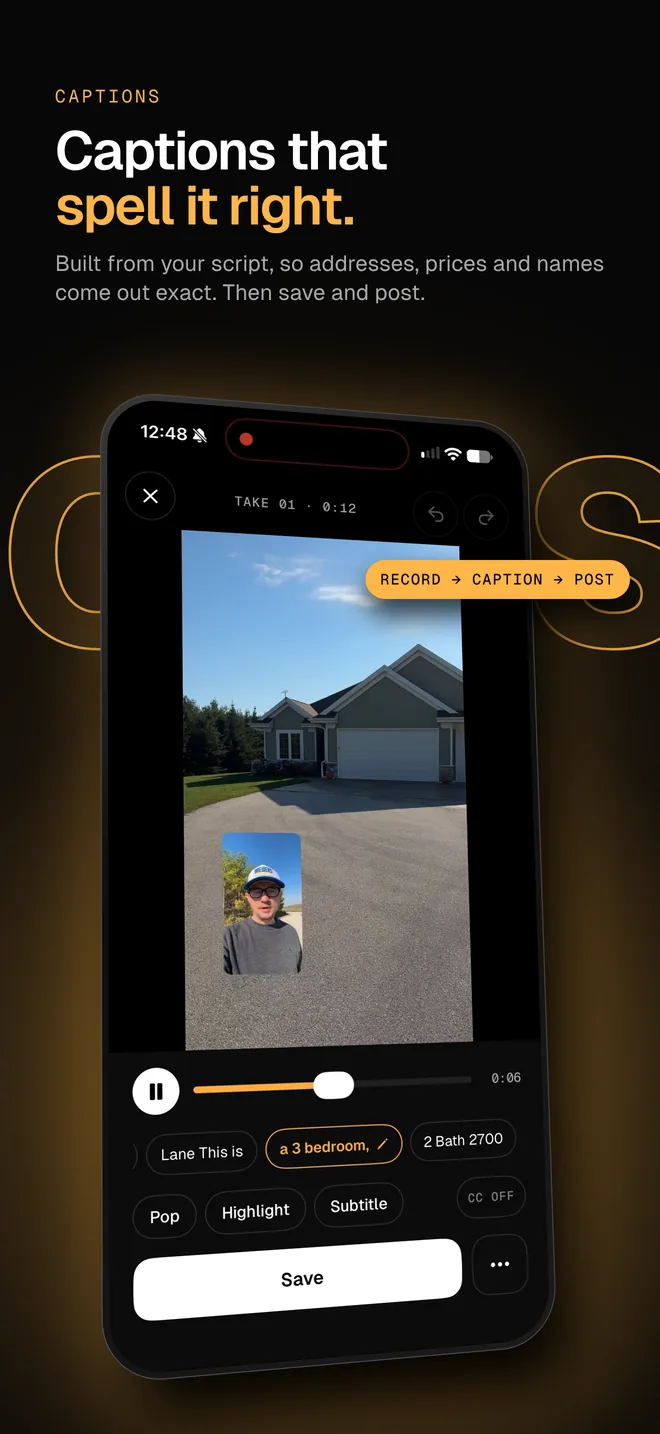
Auto captions are a guess at what you said. If you read from a script, the words already exist, so the captions can come from the script instead of a guess. That's how DuoPrompt does it: stop a take and the captions are built from your script, with names, prices and codes spelled the way you wrote them. Drag them into place and save. The Pop style is on the free plan; Highlight and Subtitle styles and .srt export for YouTube are part of Pro. If you don't have a script yet, start with how to write a teleprompter script.
How long each caption should stay on screen
Short chunks are easier to read on a phone than full sentences. Most people talk at around 150 words a minute (more in words per minute speaking), which is 2.5 words a second. That makes a two-word caption flash by in under a second. Here's how long a caption lasts at common paces, if each one holds exactly what you say:
| Pace | Words per caption | Seconds on screen |
|---|---|---|
| 130 wpm | 2 | 0.9s |
| 130 wpm | 4 | 1.8s |
| 150 wpm | 2 | 0.8s |
| 150 wpm | 4 | 1.6s |
| 170 wpm | 2 | 0.7s |
| 170 wpm | 4 | 1.4s |
Word-by-word captions are fine for a punchy hook, but for anything you want people to read and remember, three or four words per caption gives each one well over a second.
Add captions to a video on iPhone, step by step
- 01
Pick where the captions will live
If the video goes to one platform, use that platform's auto captions when you post. If it goes to several, burn the captions into the file with an editor so they show up everywhere.
- 02
Open the video in a caption editor
In CapCut, start a new project and add your clip from Photos. Edits by Instagram and iMovie work the same way: import the clip from your library first.
- 03
Generate the captions
In CapCut, tap Captions in the bottom menu, choose Auto Captions, check the spoken language and tap Generate. In iMovie there is no auto option: tap the clip, tap Titles, choose a style and type the line.
- 04
Fix names, numbers and brand words
Speech recognition misses names, prices, product codes and slang most often. Play the video once with the sound on and correct every caption box that's wrong.
- 05
Style and place them
Pick one readable style, keep it to one or two short lines, and drag the captions up and away from the bottom of the frame, where TikTok, Reels and Shorts put the username, description and buttons.
- 06
Export and check on the phone
Export at the resolution you recorded, open the file in Photos and watch it muted. If you can follow every sentence without sound, the captions are done.
Before you post: a 30-second caption check
- Watch it muted, start to finish. Every sentence should make sense without sound.
- Read every name, price, date and product code against your notes.
- Keep captions to one or two lines, in the upper-middle of a vertical frame, clear of the platform's buttons.
- Use one style for the whole video; save emphasis colors for a few key words.
- For YouTube long-form, upload a caption file instead of burning text in, so viewers can turn it off.
Filming the video too? The iPhone Duo setup for YouTube and TikTok covers light, audio and framing, and the free teleprompter apps for iPhone compares what each free tier includes, captions among them.
Captions that spell it right
DuoPrompt builds captions from your script after every take. It's coming soon to the App Store; join the launch list and we'll email you the day it's free to download.
One email at launch. No spam.
iPhone video caption questions
Does iPhone have a built-in way to add captions to a video?
Not in the Photos app: Apple's Photos video tools trim, change speed, edit audio and crop, with no caption or text option. Apple's Clips app could add spoken titles, but Apple stopped offering it to new users in October 2025. Today the free options are the captions inside TikTok, Instagram and YouTube, iMovie titles typed by hand, or a third-party editor such as CapCut or Edits.
What's the best free app to add captions to video on iPhone?
For automatic captions burned into the video, CapCut and Edits by Instagram are both free downloads with auto captions; check which caption styles need a subscription in each app. If you're posting to one platform only, its own captions are free and don't need another app.
What's the difference between open and closed captions?
Open captions are burned into the video image, so they show everywhere and can't be turned off. Closed captions are a separate track that the viewer or platform shows or hides, like YouTube's automatic captions or a .srt file. Short-form creators usually burn them in; YouTube long-form usually uses a caption track.
Why are my auto captions wrong?
Speech recognition guesses from the audio, so names, product codes, numbers, accents and background noise trip it up. Record closer to the mic in a quiet room, then proofread every caption before you export. Captions built from a written script, as in DuoPrompt, avoid most spelling errors because the words come from your script rather than a guess.
Does DuoPrompt add captions?
Yes. After a take, DuoPrompt builds captions from your script. The free plan includes the Pop caption style; Pro adds every caption style and .srt export. DuoPrompt is coming soon to the App Store; join the launch list to hear the day it's out.