Filming
How to film yourself on iPhone
Here's how to film yourself: mount the phone at eye level, use the camera you can see (usually the front one), mark the spot where you stand, lock focus and exposure, and start the recording hands-free with an Apple Watch, a remote or a tap-and-walk-in. Keep your lines right beside the lens. Below: which camera to use, how far away to stand for each shot, every way to start a take without help, and how iPhone Duo changes the setup.
Get it the day it launches
One email when it's on the App Store. No spam.
Published
By Steve Delarwelle · Updated
What's different when no one is behind the camera
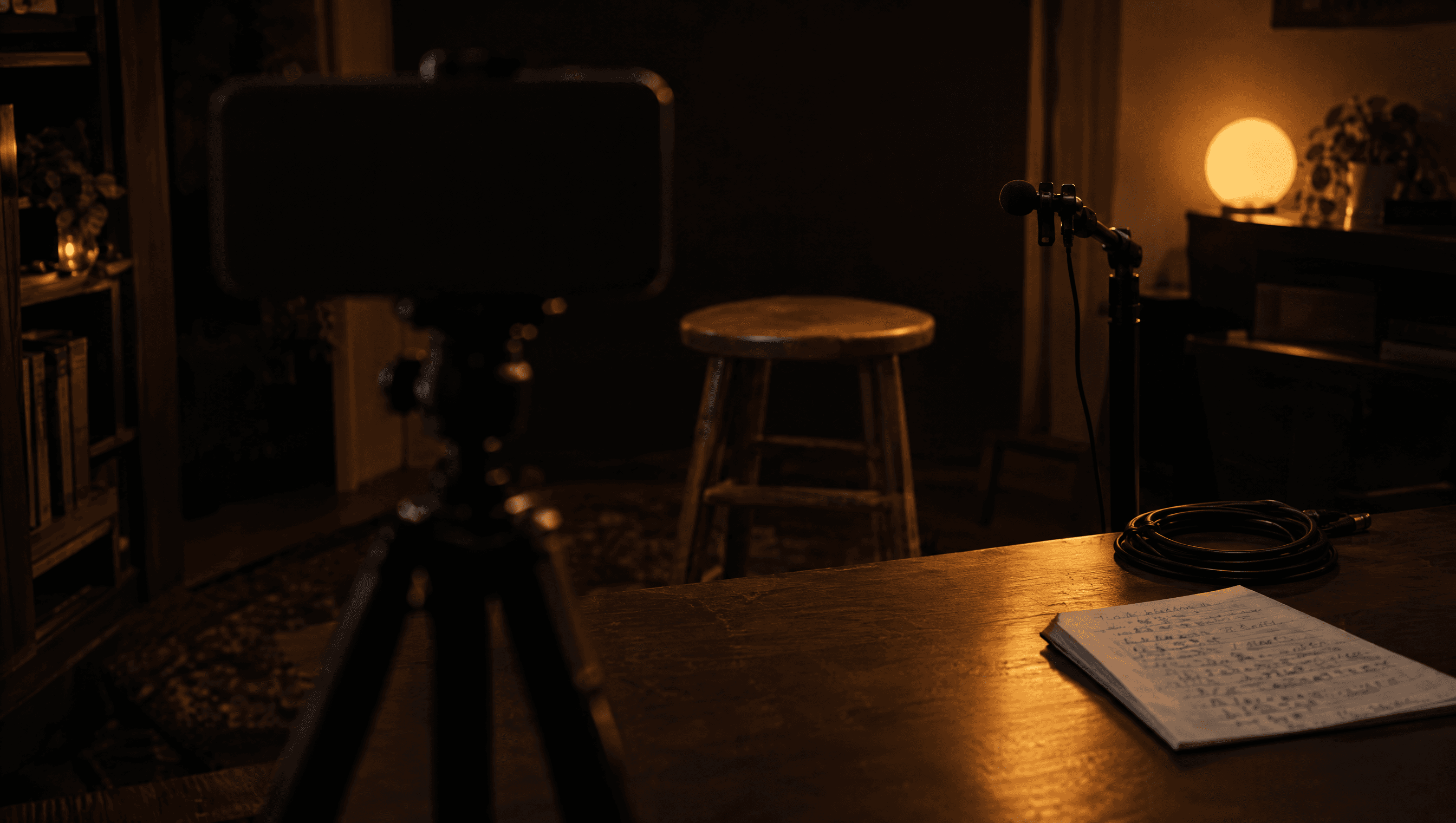
Filming yourself isn't harder because the phone is worse. It's harder because four jobs that a camera operator normally does land on you: checking the frame, starting and stopping, keeping focus on you, and holding the camera still. On top of that you're remembering what to say. Each section below solves one of those jobs.
If you're mostly sitting and talking to the lens, the framing, light and sound basics are in how to film a talking head video. This page is about doing it alone.
Which camera to film yourself with
The trade-off is always the same: the best camera is on the back, the one you can see is on the front.
| Camera | What you see | Picture | Best for |
|---|---|---|---|
| Front (selfie) camera | Yourself, full screen | Good; lower than the back camera on most iPhones | Talking to camera, reading a script, quick vertical clips |
| Back camera | Nothing, unless you add a monitor or watch preview | Best on the phone | Wide shots, full body, demos where you can lock the frame first |
| iPhone Duo inner camera, half-folded | Yourself on the 7.6-inch inner screen | 1080p at 30 or 60 fps | Hands-free desk recording with a script on screen |
| iPhone Duo outer camera | Yourself on the outer screen | Up to 4K, Center Stage | 4K talking heads |
| iPhone Duo rear cameras with Duo Preview | Yourself on the outer screen while the rear cameras face you | 48MP rear system, the best on the phone | Top-quality shots you don't need to read lines for |
iPhone Duo figures from Apple's tech specs.
How far away to put the phone
Rough distances from the lens to your face for each shot size. Frame the empty shot, sit or stand on your mark, and nudge from there; every phone's lens is a little different.
| Shot | Front camera | Back camera |
|---|---|---|
| Close-up (chin to top of head) | About 40–50 cm | About 60–80 cm on 1x |
| Medium close-up (chest up) | About an arm's length, 60–70 cm | About 1–1.2 m on 1x |
| Medium (waist up) | Hard to reach handheld; use a tripod at about 1 m | About 1.5–2 m on 1x |
| Full body, standing | Not practical | About 3 m on 1x, or about 1.5 m on 0.5x |
Ways to start recording without help
The iPhone Camera app's timer (3, 5 or 10 seconds) is a photo feature, and Apple Community answers say there's no built-in self-timer for video. These are the options that do work.
| Method | Works with | What to know |
|---|---|---|
| Tap record, walk into place, trim later | Every phone, every app | Each clip starts and ends with you walking. Takes a few seconds to cut in an editor. |
| Apple Watch Camera Remote | iPhone paired with an Apple Watch | Touch and hold the shutter on the watch to start, tap stop to end. Works within about 10 m (33 feet), and you can switch between front and rear camera from the watch. |
| Bluetooth shutter remote | Cheap clickers sold with most phone tripods | Acts like a volume button. Check it starts video in your camera app, not only photos. |
| A Shortcuts delay | Any iPhone, using the Shortcuts app | A Wait action before Take Video gives you a countdown, but you still stop the recording by hand. |
| An app that records while you read | Teleprompter apps that record | You start the take on the screen you're already looking at, so there's no walk-in to trim. |
Sources: Apple's Camera Remote on Apple Watch guide and iOSHacker's iOS 26 camera timer walkthrough.
How to film yourself in 7 steps
- 01
Choose the camera you can see
When you film yourself, the camera you can watch is usually worth more than the sharpest one. Use the front camera for anything you talk through. Use the back camera only when you can set the frame once, lock it and stay put.
- 02
Mount the phone at eye level
Put the phone on a tripod, a clamp on a shelf or a stack of books so the lens is level with your eyes. Leaning a phone on a mug works until it slides mid-take; anything that holds it still is better than holding it yourself.
- 03
Mark your spot and frame the empty shot
Stand or sit where you'll be, frame the shot, then put a piece of tape or an object on the floor where your feet or chair go. Every take you hit the same mark, and the framing matches from clip to clip.
- 04
Light your face, not the room
Face a window or put a lamp in front of you and a little to one side. With no one behind the camera to notice, a bright window behind you is the most common reason a solo take is unusable.
- 05
Lock focus and exposure
With no camera operator, the phone will hunt for focus whenever you move. Touch and hold on your face (or on your mark, for the back camera) until AE/AF Lock appears in the Camera app.
- 06
Start the take hands-free
Use an Apple Watch, a Bluetooth remote, or tap record and walk in. Leave two seconds of silence before your first word and after your last so you have room to cut.
- 07
Put your lines next to the lens and check take one
Keep your notes or script right beside the camera so your eyes don't drift. Record a short first take, watch it back for framing, focus and sound, then record the rest in short sections.
Remembering what to say
Alone, there's no one to cue you, so most people either ramble or read from a laptop off to the side and lose eye contact. Two fixes: record in short sections (one idea per take) so there's less to remember, and put your words where the lens is. A teleprompter app that records shows the script just under the front camera. Write it the way you talk with how to write a teleprompter script, then practise with how to read a teleprompter naturally.
Filming yourself on iPhone Duo
iPhone Duo solves two of the four solo jobs on its own. Half-folded, it stands up on a desk, so you don't need a tripod for sitting shots, and the inner screen faces you as a big monitor. Apple's specs put that inner under-display camera at 1080p, and the 12MP Center Stage camera in the outer screen at up to 4K.
The trick a regular iPhone can't do is filming yourself on the rear cameras while you watch: as MacRumors puts it, the outer display acts as a viewfinder for 48MP rear-camera selfies. Apple calls the live preview on the outer screen Duo Preview. The catch is the small screen, so it suits shots where you aren't reading. Details are in the iPhone Duo camera guide and how to record with iPhone Duo half-folded.
DuoPrompt is made for the half-folded setup: the script goes on the half with the front camera, the controls on the half lying flat, and the take records to Photos. The free plan scrolls at a speed you set; Pro's voice-follow scrolls as you speak and waits when you pause. It runs on any iPhone with iOS 26 or later, not only iPhone Duo.
Film yourself with your script beside the lens
DuoPrompt is coming soon to the App Store. Join the launch list and we'll email you the day it's free to download.
One email at launch. No spam.
Filming yourself: questions
How do I film myself without holding the phone?
Mount it: a tripod, a phone clamp on a shelf, or the phone propped on a stack of books at eye level. Then start the recording with an Apple Watch, a Bluetooth remote, or by tapping record and stepping into your marked spot. On iPhone Duo, half-folding the phone lets it stand on its own on a desk.
Does the iPhone camera timer work for video?
The Camera app's timer (3, 5 or 10 seconds, in the menu at the top right in iOS 26) is for photos. Apple Community answers say there's no built-in self-timer to start a video; the usual workarounds are Camera Remote on Apple Watch, a Bluetooth remote, or a Shortcuts automation with a Wait step before Take Video.
Can my Apple Watch start a video on my iPhone?
Yes. Open Camera Remote on the watch, then touch and hold the shutter button until recording starts, and tap stop to end. Apple says it works within normal Bluetooth range, about 10 metres (33 feet), and you can choose the front or rear camera from the watch. The video saves to Photos on the iPhone.
Should I film myself with the front or back camera?
Front, if you're talking to the camera or reading lines, because you can see your framing and your notes. Back, if you need the best picture or a wide shot and can lock the frame before you step in. On iPhone Duo, Duo Preview shows the rear-camera picture on the outer screen, so you get both.
How do I stop looking at myself on the screen?
Look at the lens, not your face. A small sticker next to the lens helps, and so does putting your notes as close to the lens as possible. A teleprompter app that records shows your script just under the front camera so your eyes stay up.
Is DuoPrompt available yet?
Not yet. DuoPrompt is coming soon to the App Store; join the launch list and we'll email you the day it's out. It's a free download for iPhone with a manual-scroll teleprompter, 1 saved script and 30-second takes. Pro adds voice-follow scrolling, Duo Camera and unlimited takes with no watermark.